How to Set Up Your First Month in CalBudget (in 15 Minutes)
A blank calendar to a year of forecasted cash flow, in four steps. Account balance, recurring bills, paychecks, ad-hoc spending — in exactly that order.
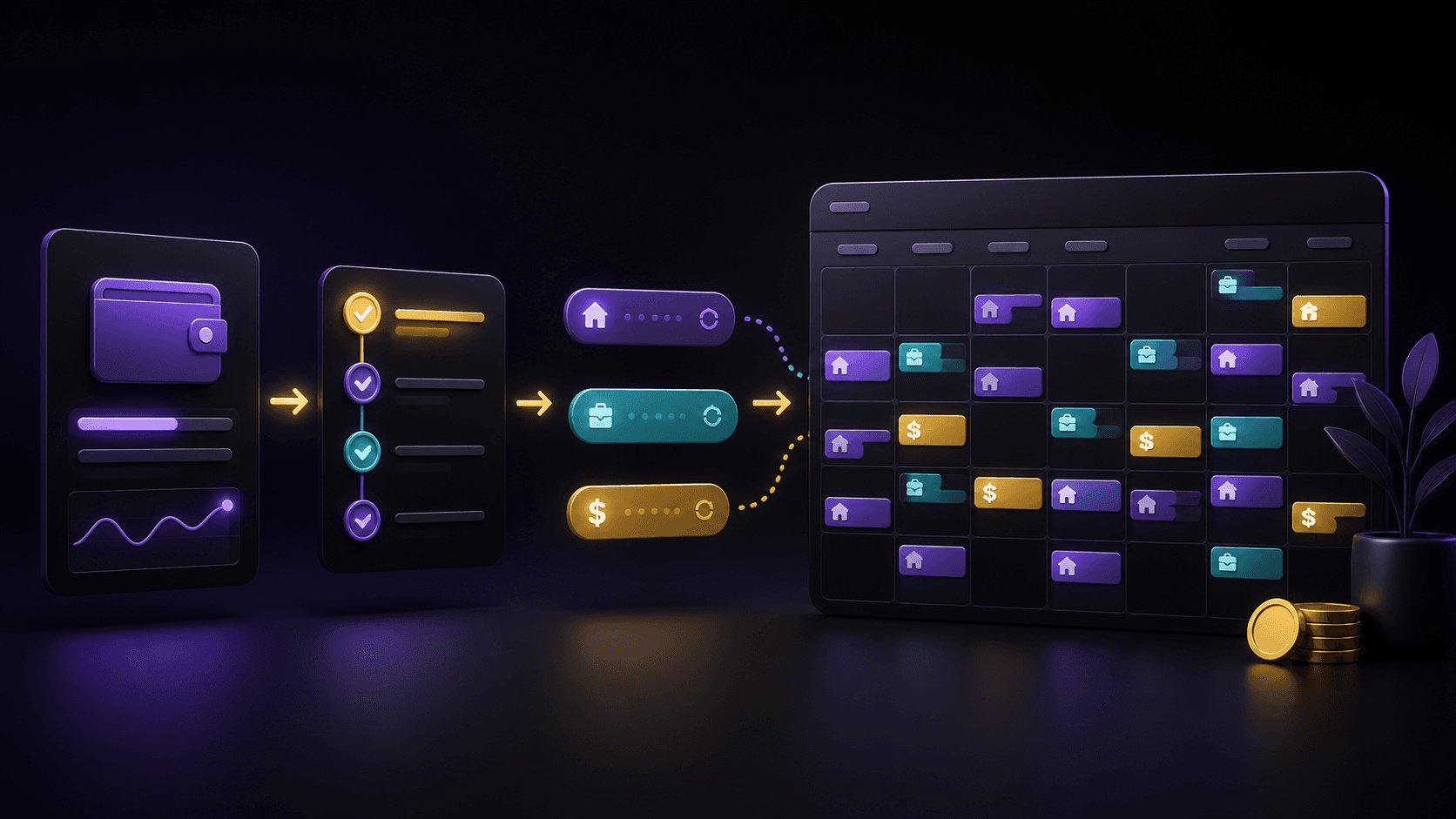
The single biggest reason people abandon budgeting is the setup. You sit down to "get organized," three hours later you're knee-deep in a spreadsheet with twelve tabs and one of them is named "misc2," and you give up. CalBudget is designed so the entire setup takes about fifteen minutes — and most of that is just typing in numbers you already know.
Here's the exact order. Doing it in this order matters: each step depends on the one before it.
Step 1: Enter your account balance (1 minute)
Open your bank app, look at the current balance of your primary checking account, and type that number into CalBudget under Settings → Accounts. That's your starting point. Everything else is computed forward from there.
If you have multiple accounts — savings, a credit card, a joint checking — add each one. Each gets its own calendar and its own running balance. You can also skip them for now and add them later; nothing breaks.
CalBudget never connects to your bank. You type in the balance manually. This is the only mildly tedious step, and it's the reason your banking credentials never leave your device.
Step 2: Add your recurring bills (5 minutes)
These are the transactions that happen on the same schedule every month — rent, mortgage, car payment, insurance, internet, phone, gym, the streaming services that have somehow accumulated. Add each one as a transaction with a frequency: monthly, biweekly, weekly, yearly.
When you mark a transaction recurring, CalBudget automatically populates up to 52 future occurrences sharing a recurrence group. Your rent on the 1st of May, June, July, all the way through next April, all in one click.
- Open Add Transaction.
- Type the amount, name, and the day of the month it usually hits (e.g., rent on the 1st).
- Pick a frequency. Most bills are monthly.
- Save. Watch a year of future occurrences fill in.
The first pass should take you 5 minutes, not 30. If you forget a $9 subscription, you'll catch it next month and add it then. The point is to get the big rocks in place.
Step 3: Add your paychecks (3 minutes)
Income works exactly like bills. Add your paycheck as a recurring transaction — usually biweekly or monthly, depending on your employer. If you have a side hustle with predictable income, add it too. If your income is irregular, enter expected amounts and adjust them as reality unfolds.
Variable Income Without the Anxiety: A Freelancer's Guide
If your income is irregular — freelance, contract, commission — there's a specific setup that works much better than the standard one.
After this step, your calendar should already look useful. The big inflows and outflows are mapped. The running balance line is starting to mean something.
Step 4: Add the ad-hoc stuff (6 minutes)
This is groceries, gas, the occasional dinner out, a haircut, a Target run. You can do this two ways:
- Backfill the current month from your bank's recent transactions (skim the last 30 days, drop them onto the right days).
- Or skip the backfill and just start logging from today forward — takes about 30 seconds a day.
Either works. The second is faster to start. The first gives you a fuller picture sooner. There's no wrong answer.
CalBudget has a quick-add bookmarks feature — save your most common transactions (groceries, coffee, gas) and one-click them onto any day. After the first week, daily logging takes under a minute.
What you should be looking at by minute 15
Once you finish step 4, scroll forward a month or two on the calendar. You should see:
- Your rent or mortgage on the 1st (or whichever day it actually hits).
- Your paychecks on their normal days.
- Subscriptions sprinkled across the month.
- A running balance number on every day, showing you exactly when the low point of each month falls.
If you see all of that, you're done with setup. From here it's maintenance — a few seconds a day to log new transactions, a quick scroll once a week to spot anything off-schedule.
Why a Calendar Is the Best Budget App You're Not Using
The mental model behind the four-step setup. Why a calendar beats a list, and why time is the missing variable in most budgeting tools.
Budget Calendar Template
A ready-made budget calendar template for roughing out your bills and paydays before you enter them in the app.
Sign up at the homepage to start your fifteen-minute setup. CalBudget is manual-first — no bank login required — and paid plans start at a few dollars a month, with a 3-day trial for eligible new annual subscribers. See the pricing page for current details.
Putting first-month budget setup into practice
Treat set up a budget calendar as a short weekly habit, not a one-time cleanup. Open the calendar, find your next two paychecks, then look at every bill, subscription, transfer, and planned purchase that clears before the second paycheck lands. That window is where most budget stress starts, because it is close enough to forecast accurately and far enough away that you can still change the outcome.
For new budgeters who want a fast setup without connecting their bank account, the goal is not a perfect financial model. The goal is to know whether the next important date is safe. When the lowest projected balance looks uncomfortable, you have a clear menu of moves: shift a flexible due date, delay a nonessential purchase, split a large payment, transfer money earlier, or trim one week of the spending plan. A calendar budget puts those tradeoffs in front of you before the bank balance makes them urgent.
However you phrase the underlying question — how to start budgeting in 15 minutes, or first month budget setup, or manual budget app setup — it resolves the same way once the dates are on a calendar. Instead of one broad monthly total, you get a date-by-date answer: the day money arrives, the day it leaves, and the day that deserves your attention first.
The best first-month budget setup plan is the one you can check in under five minutes. Put the important dates on the calendar, watch the running balance, and let the lowest day tell you what needs attention next.
A 30-Day Action Plan for How to Set Up Your First Month in CalBudget (in 15 Minutes)
Turn the advice in this guide into a 30-day experiment instead of a permanent rule you have to master immediately. During the first week, record the dates and amounts you already know: income, housing, utilities, debt minimums, subscriptions, transportation, groceries, and planned transfers. During the second week, compare those entries with what actually cleared. Correct the dates before changing the budget amounts. By the third week, the forecast should reflect your normal timing well enough to expose the one or two days that create the most pressure. Use the final week to make one repeatable adjustment and carry it into the next month.
This phased approach matters for set up a budget calendar because an accurate baseline is more useful than an ambitious first draft. A bill that usually clears two days early, a grocery trip that moves with payday, or a transfer that is recorded as income can distort the entire picture. Correcting those details gives you a forecast you can trust. Once the timing is reliable, decisions about budget calendar setup, first month budget setup, manual budget app become easier because each choice has a visible effect on the days that follow.
Measure Progress With Decisions, Not Perfection
A useful budget does not need every transaction to match the plan exactly. It needs to reveal a problem while the problem is still small. Track three signals: the lowest projected balance before the next paycheck, the number of expenses that arrived without a calendar entry, and the size of the difference between planned and actual flexible spending. Those measurements answer practical questions. Is the buffer growing? Are surprise transactions becoming less common? Is the forecast becoming more accurate from one week to the next? Progress in those areas is more durable than finishing one month with perfectly organized categories.
- Check the next two paychecks and every obligation scheduled between them.
- Compare the projected low point with a personal comfort floor, not merely zero dollars.
- Correct an inaccurate date as soon as a transaction clears earlier or later than expected.
- Make one adjustment at a time, then confirm that it improves the forecast before changing anything else.
Choose a comfort floor that reflects the way the account is used. Someone with a separate emergency fund may be comfortable with a smaller checking cushion. A household with variable income, automatic withdrawals, or frequent transportation costs may need more room. The number is not a moral score and it does not need to match anyone else's recommendation. It is simply the point where a normal surprise would force a transfer, a delayed bill, or an overdraft. Keeping the projected balance above that floor turns the calendar into an early-warning system rather than a record of what already happened.
Make the Plan Resilient to Real Life
Build a small amount of uncertainty into the forecast. Use the earliest reasonable date for withdrawals and the latest reasonable date for deposits. Round flexible expenses up when the exact amount is unknown. Add placeholders for irregular costs as soon as you learn about them, even if the estimate will change. This conservative approach may make the first forecast look less comfortable, but it prevents the plan from depending on every event going perfectly. When the real amount is lower or income arrives early, the difference becomes breathing room instead of money that was already promised elsewhere.
If the forecast still falls below the comfort floor, work outward from the low day. Review the seven days before it and separate fixed obligations from flexible choices. Protect housing, utilities, transportation, food, insurance, and required minimum payments first. Then test the smallest available move: reschedule an optional purchase, reduce one flexible amount, pause a transfer, or ask whether a provider offers a better due date. The objective is not to erase all spending. It is to solve the timing conflict with the least disruption and preserve a plan you can repeat next month.
At the end of the month, ask which single decision made set up a budget calendar easier to follow. Keep that decision, remove any step that created work without improving the forecast, and use the updated dates as next month's starting point.
How a Running Balance Predicts Overdraft Risk
Connect this strategy to a dated running balance and make the next low-cash day visible before it arrives.
See CalBudget Features for Calendar-Based Planning
Review the calendar, recurring transaction, forecasting, and account tools used throughout this guide.
Frequently asked questions
How long does it take to set up a budget in CalBudget?
About fifteen minutes: one minute for your account balance, five for recurring bills, three for paychecks, and six for everyday spending. Most of it is typing numbers you already know.
Do I need to connect my bank account to CalBudget?
No. CalBudget is manual-first and never asks for a bank login. You type in your balance, and you can optionally upload statements or import CSV files to backfill history.
What should I add to a budget calendar first?
In this order: your current account balance, recurring bills, paychecks, then ad-hoc spending like groceries and gas. Each step depends on the one before it.
How do recurring transactions work in CalBudget?
When you mark a transaction as recurring — daily, weekly, biweekly, monthly, or yearly — CalBudget populates up to 52 future occurrences that share a recurrence group.